OneCard Shop

Your loyalty scheme. Their one card.

Bring customers back without printing stamp cards or paying for a custom app. Your customers carry OneCard; you set the rules, the rewards and who on your team can do what.

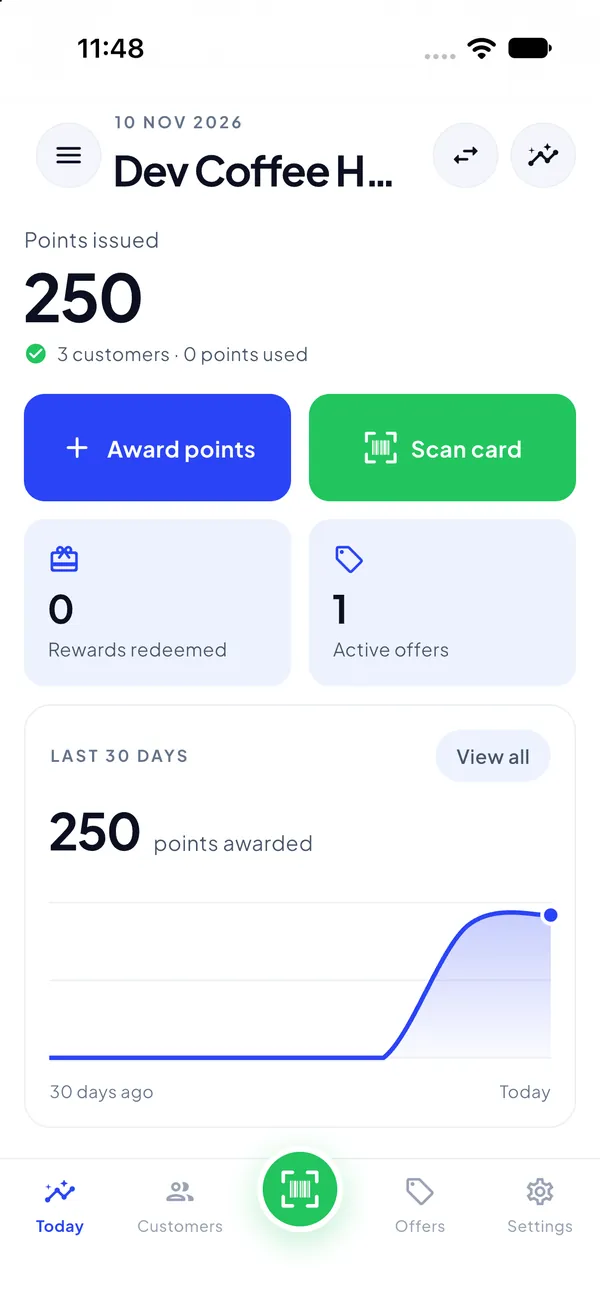
OneCard Shop Today dashboard with points issued, customers and active offers
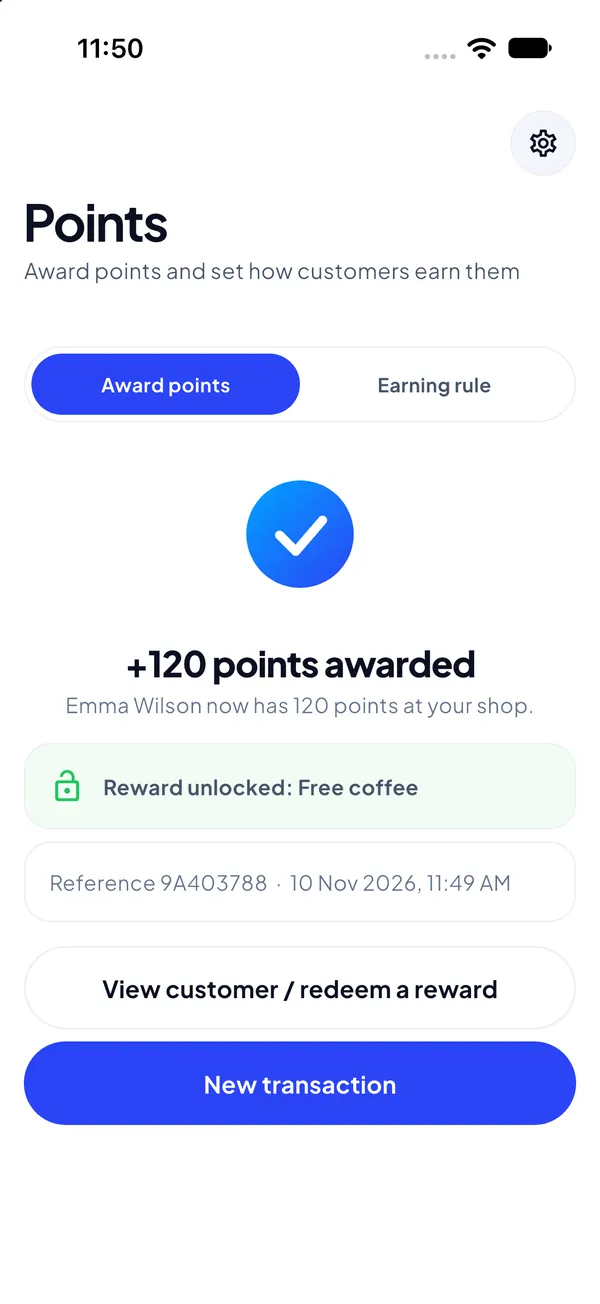
OneCard Shop confirmation: 120 points awarded and Free coffee unlocked
Why OneCard

Built for independent shops

More repeat visits

Rewards give regulars a reason to choose you, and customers can see how close they are to the next one.

No cards to print

Customers already have the OneCard app, or install it in a minute with just their mobile number.

Your customers stay yours

Your points, rules and customer list are private to your shop. Other shops cannot see them.

Seconds at the till

Scan, confirm, done. OneCard works out the points so staff never do the maths.

Know your numbers

See transactions, sales and points over time, and who your most loyal customers are.

Mistakes can be undone

Reverse a transaction or a redemption with a reason. Every change is kept in an audit trail.

Awarding points

Three ways to award points

Start with a phone today. Connect your till whenever you are ready.

Fully automatic

1. Your till scans the card

Your till's barcode scanner reads the customer's OneCard, and the till sends the sale straight to OneCard. Points appear in the customer's app and can be printed on the receipt.

Needs: a till that supports the OneCard POS API.

No till scanner needed

2. Till sends the sale, staff scan in the app

Your till sends each sale amount to OneCard. Staff scan the customer's card in OneCard Shop and pick the waiting sale, so nobody types amounts. Waiting sales expire after 30 minutes.

Needs: a connected till and a phone with OneCard Shop.

Works today

3. Phone only

Staff scan the card with OneCard Shop (or type the card number), enter the amount spent and tap Award points. OneCard calculates the points from your earning rule.

Needs: any iPhone or Android phone.

Using a till system? Send your supplier our POS integration guide and ask them to request API access.

Offers & rewards

Rewards your regulars actually want

Create as many rewards as you like, each with its own points price. Customers see which rewards are ready and how many points they need for the next one.

  • Set your earning rule, for example 1 point for every £1.
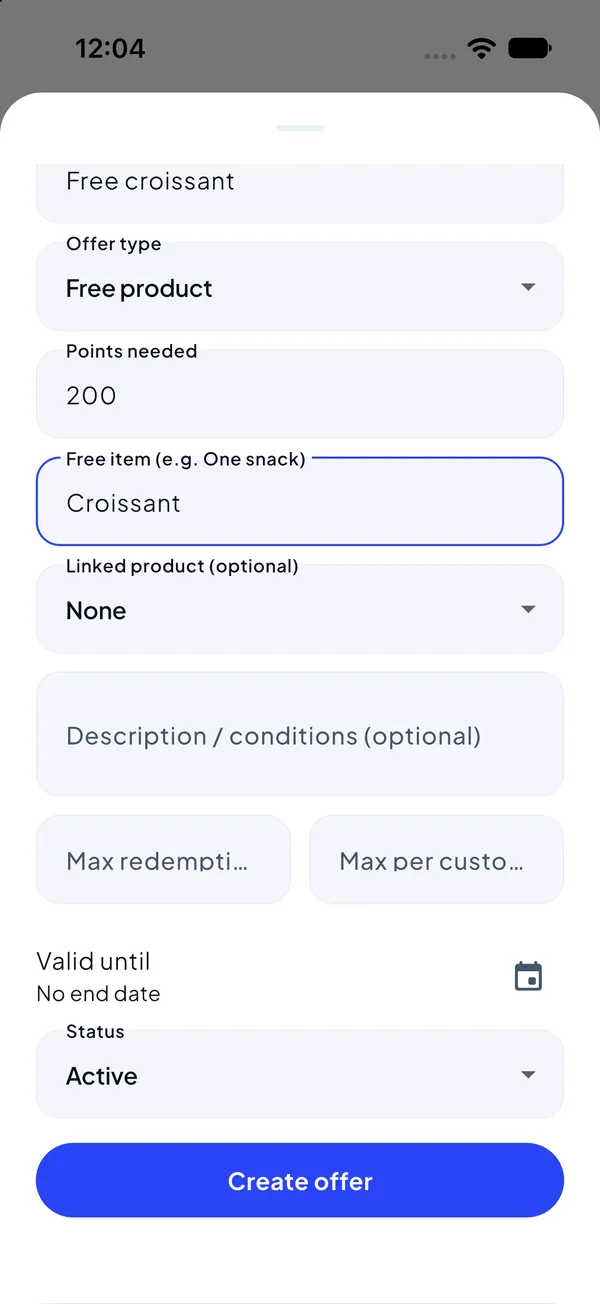
  • Create rewards such as "Free coffee, 100 points" or "Free croissant, 200 points".
  • Add products that earn their own points.
  • Redeem at the till: scan the card, choose the reward, confirm.
  • Rule changes apply to future visits only. History is never rewritten.
Creating a new reward in OneCard Shop: Free croissant for 200 points
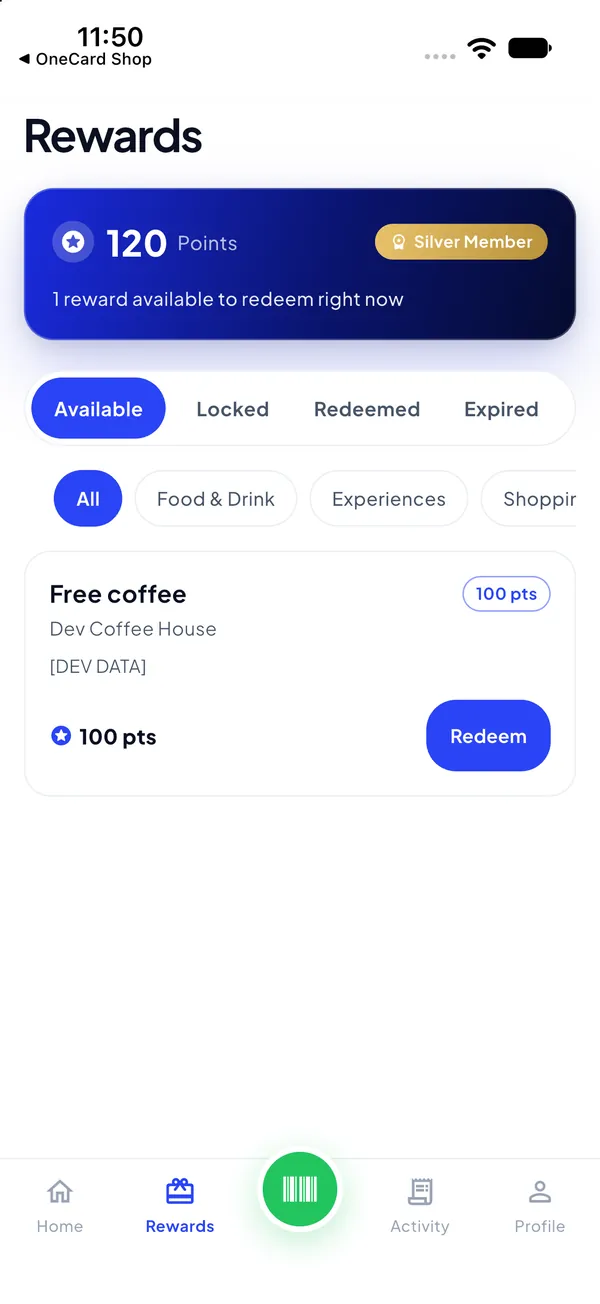
Customer app Rewards tab showing a Free coffee reward available
Reports

See what loyalty is doing for you

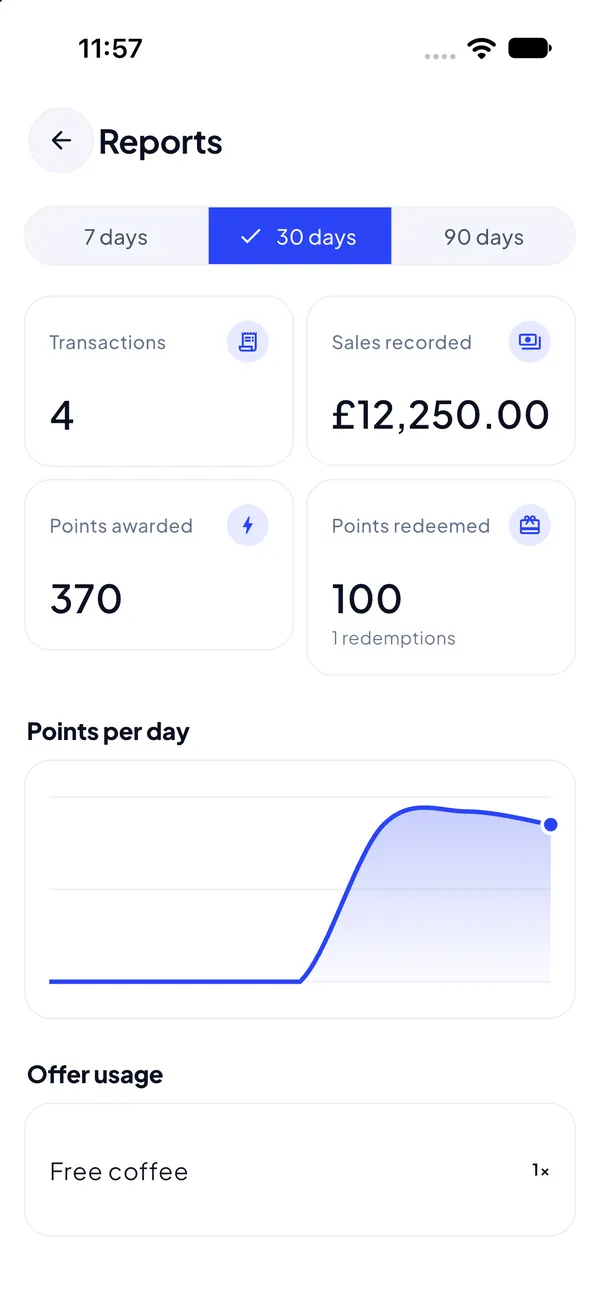
The Today dashboard shows points issued, customers, rewards redeemed and active offers, with the last 30 days at a glance. Reports break down transactions, sales and points.

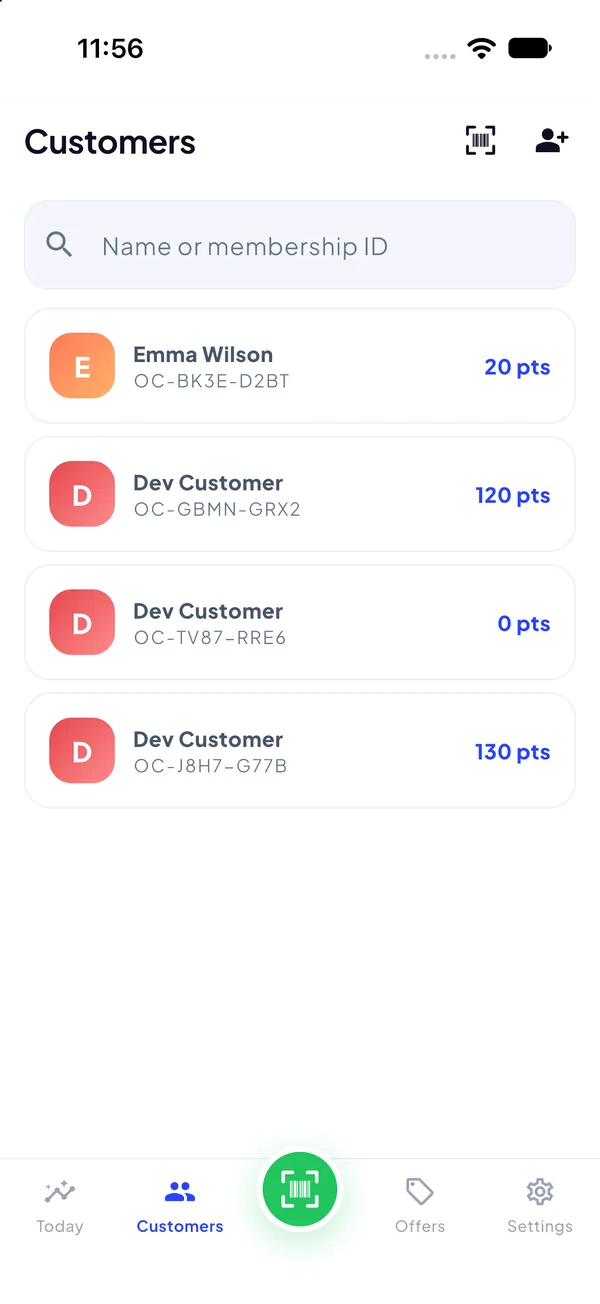
  • Customer list with each customer's balance and history.
  • Transactions, sales and points reports.
  • Full history of every point added or taken away.
OneCard Shop Reports screen with transactions, sales and points
OneCard Shop customer list with points balances
Staff roles

The right access for each person

Invite your team from Settings. Each person signs in with their own email address, so you always know who did what.

What each staff role can do
RoleTypical personCan do
OwnerThe business ownerEverything, including shop details, earning rules, staff, till connection and API keys.
ManagerShop managerDay-to-day running: offers, products, customers, reports, reversals.
CashierCounter staffScan cards, award points and redeem rewards.

Exact permissions are shown in OneCard Shop when you invite someone.

Getting started

Up and running in an afternoon

  1. Download OneCard Shop

    Install OneCard Shop on your phone from the App Store or Google Play and register your shop with your email address.

  2. Set your earning rule and rewards

    In Settings choose how many points each pound earns. In Offers create your first reward.

  3. Invite your staff

    Add managers and cashiers in Settings → Staff.

  4. Tell your customers

    Put a "We use OneCard" sign by the till. Customers install OneCard and you scan their card on their next visit.

  5. Connect your till (optional)

    If your till supports OneCard, create a key in Settings → Till / POS connection and give it to your till supplier.