
Customer guide
The OneCard app is your loyalty card for every OneCard shop. It is free and works on iPhone and Android.
Sign up
- Install OneCard and tap Get Started.
- Enter your UK mobile number. There is no password.
- Type the 6-digit code we send you by text message.
- Add your name. Your birthday and city are optional. Accept the terms and you are done.
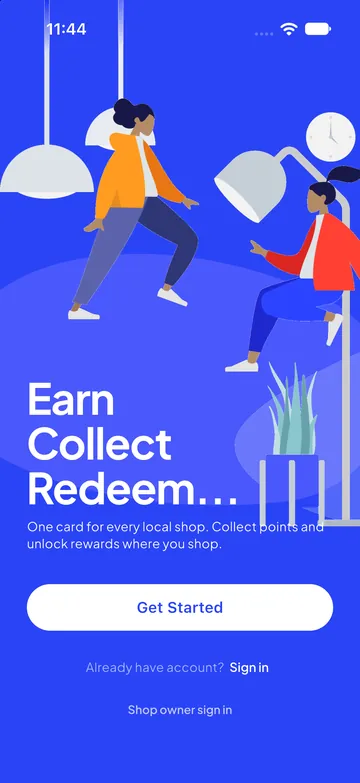
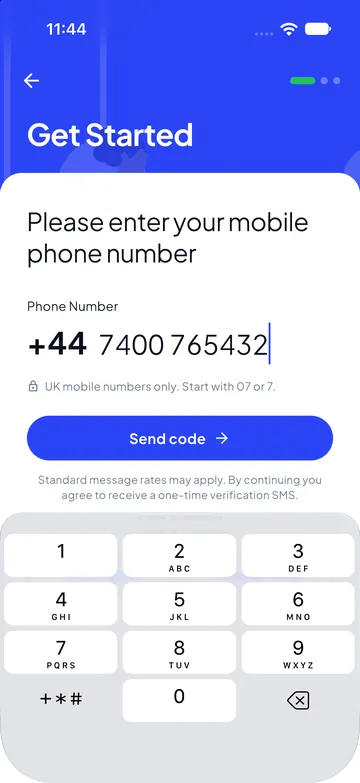
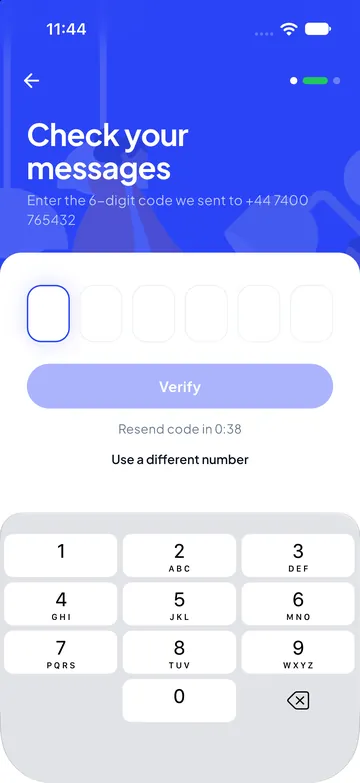
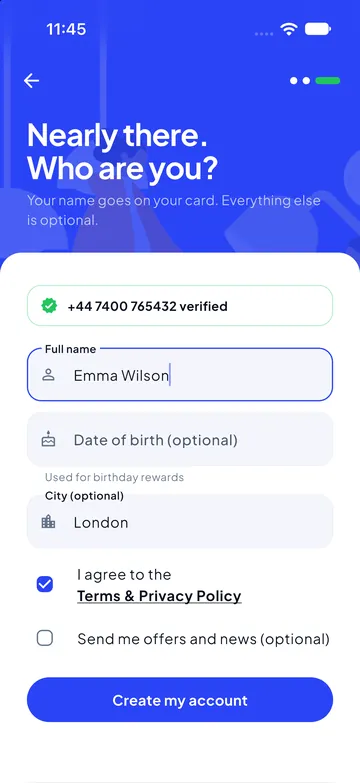
Didn't get the code? Wait a minute and tap resend. Check the number starts with 07 or +44 7.
Your card
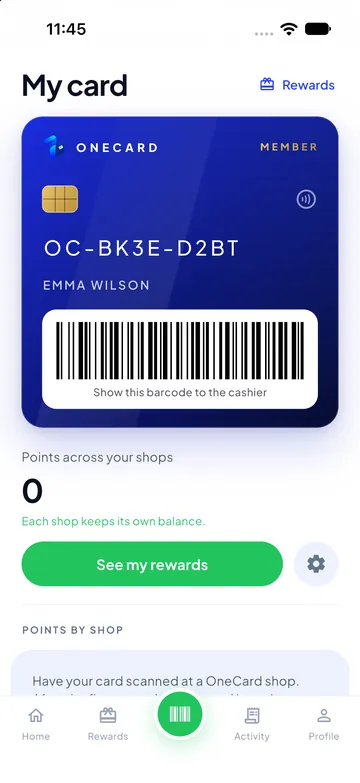
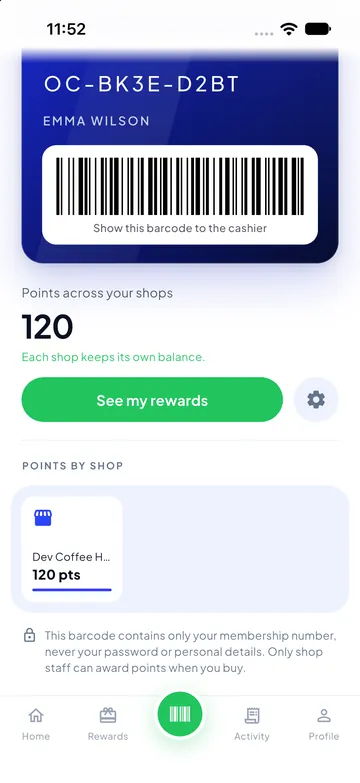
Tap the barcode button in the middle of the bottom bar to open your card. Show the barcode to the cashier when you pay. The barcode holds only a card number such as OC-BK3E-D2BT, never your name or phone number. If the scanner can't read it, the cashier can type the card number instead.
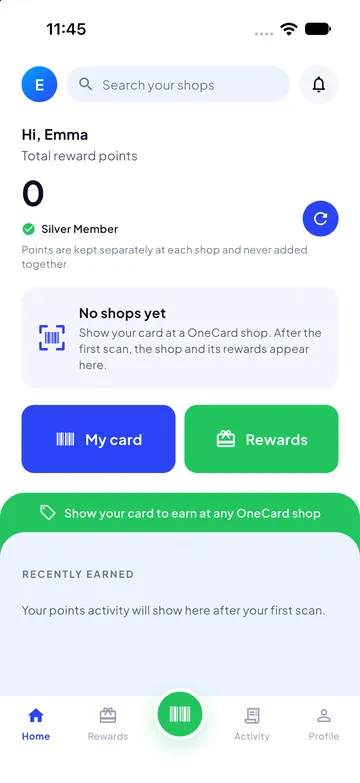
Your home screen is empty until a shop scans your card for the first time. There is no shop directory: each shop appears after your first visit.
Points by shop
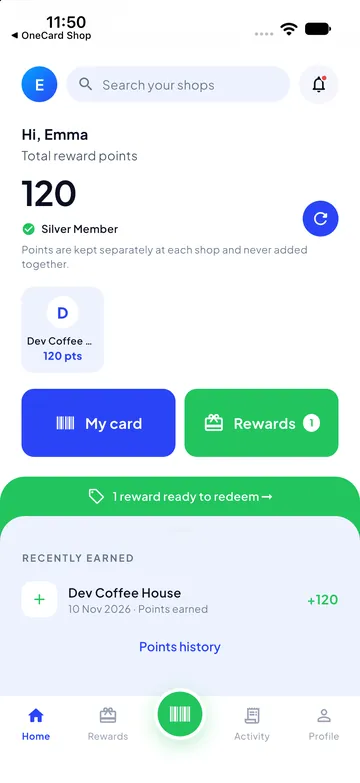
Every shop keeps its own points. After a visit the points arrive in your app straight away. The card screen lists your points at each shop.
Rewards
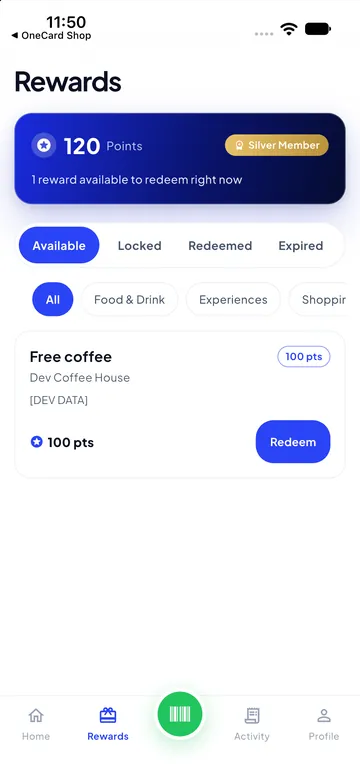
- Open Rewards. Rewards you can claim now are at the top; locked ones show how many more points you need.
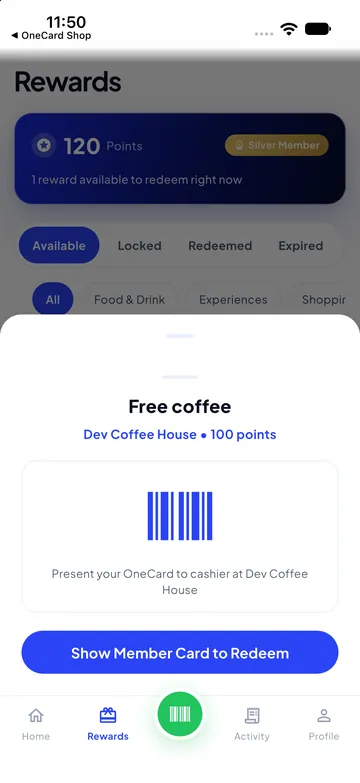
- Tap a reward and show your card at the till.
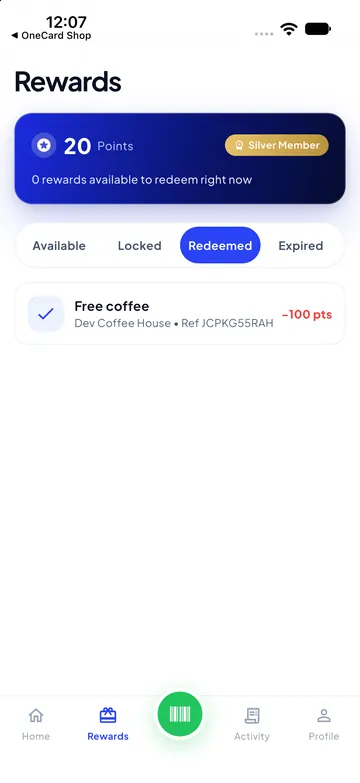
- The staff confirm it in their app. The points are taken from that shop's balance and you get a reference number.
History & profile
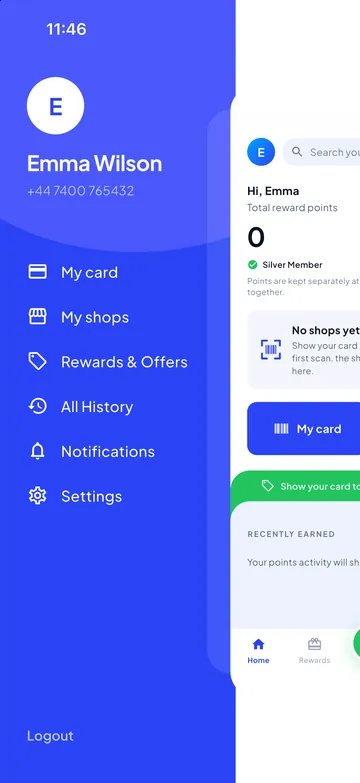
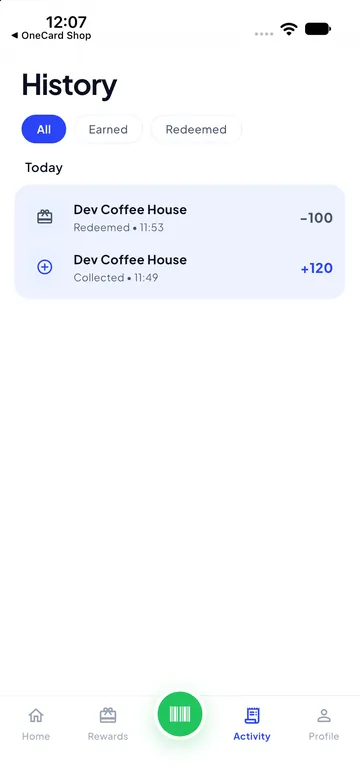
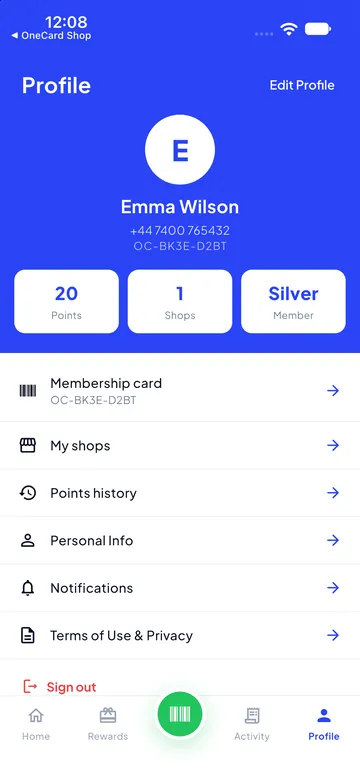
Activity lists every point earned and spent, with the shop and the local time. Profile lets you update your details and sign out.
Shop owner & staff guide
OneCard Shop is the app you use at the counter. Owners also use it to set up the shop, staff and till connection.
1. Sign in
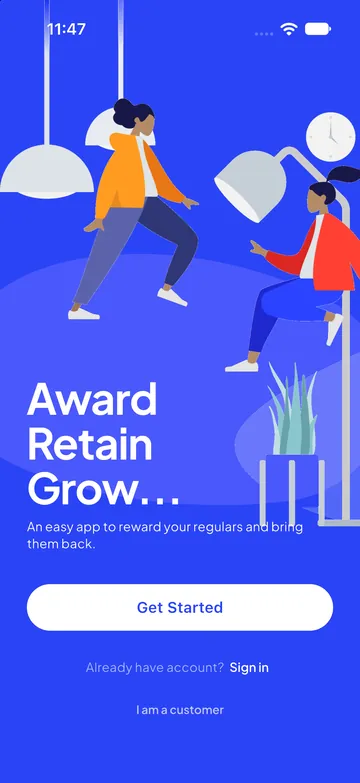
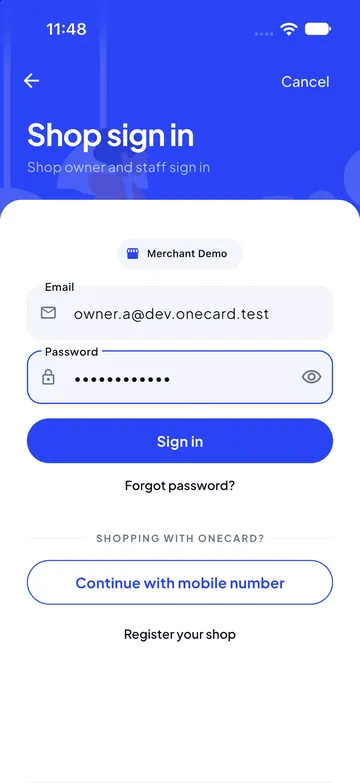
Owners register the shop with an email address and password. Staff sign in with the email address the owner invited and the password they set. You can turn on two-step verification in Settings.
2. Set up your shop (owner)
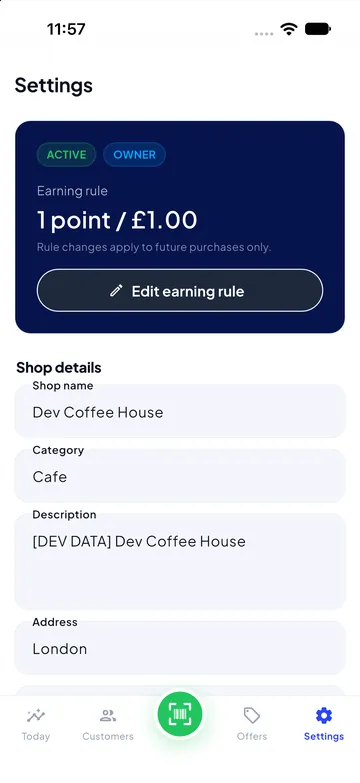
- Open Settings.
- Set your earning rule, for example 1 point for every £1 spent. Changes apply to future visits only.
- Check your shop details: name, address and contact.
3. Award points
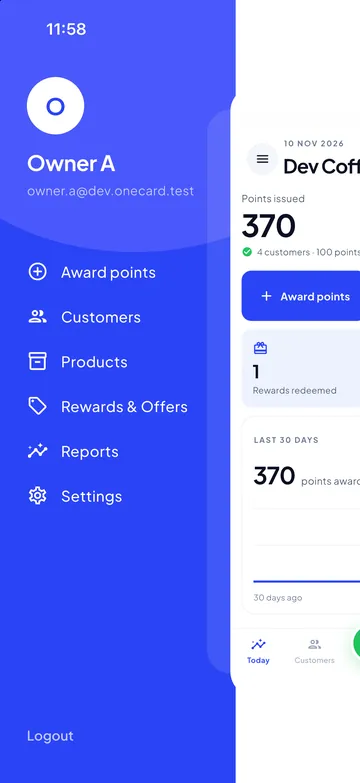
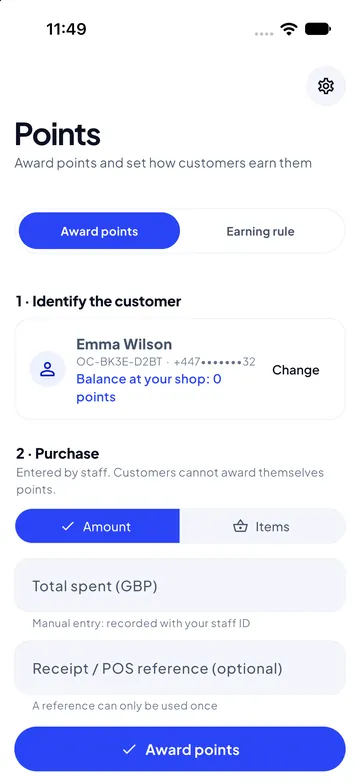
- Tap Award points.
- Scan the customer's barcode with the camera, or type their card number.
- The first time you scan a card, that person becomes your customer automatically.
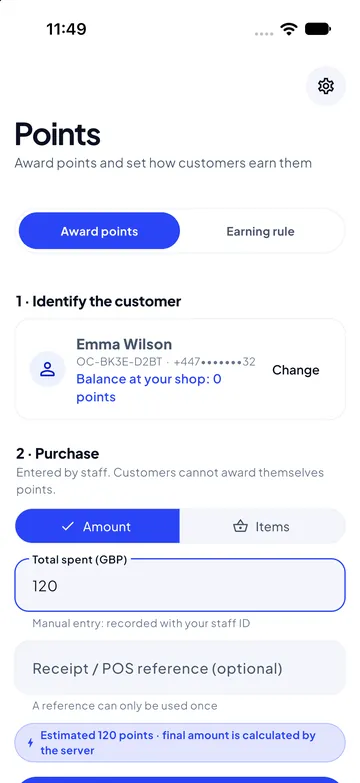
- Enter the amount spent. The app shows the estimated points.
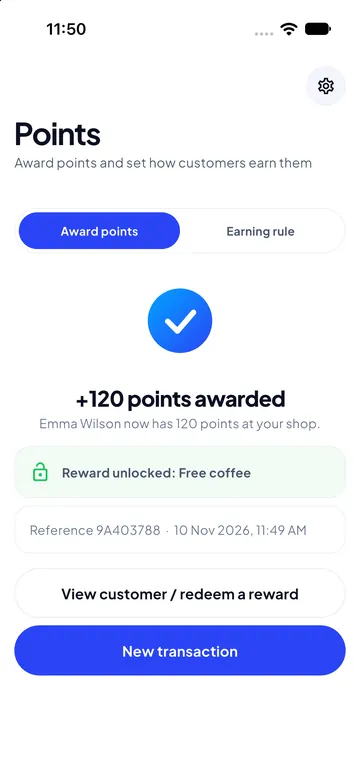
- Tap Award points. OneCard calculates the final points and tells you if a reward has unlocked.
If your till is connected to OneCard you may not need to type the amount at all. See Connect your till.
4. Redeem a reward
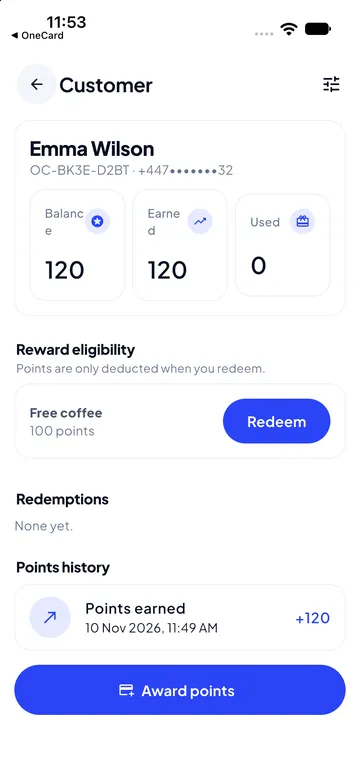
- Scan the customer's card. Their record shows which rewards they can claim.
- Choose the reward and confirm.
- The points are deducted and you see a reference number. Hand over the reward.
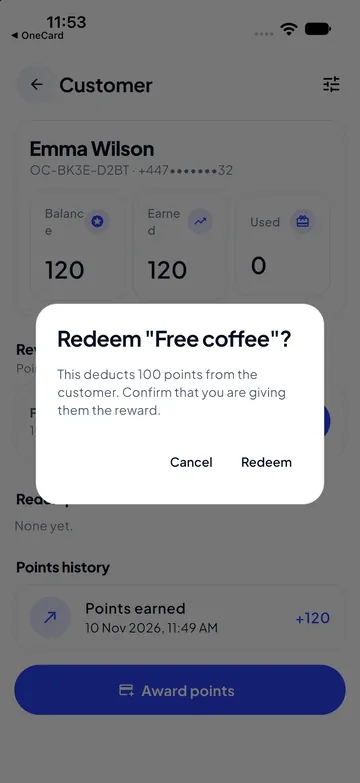
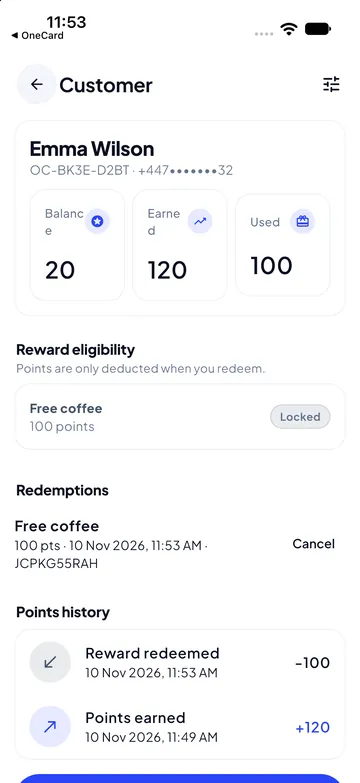
Made a mistake? Managers and owners can reverse a transaction or redemption from the customer's history, with a reason.
5. Offers & products
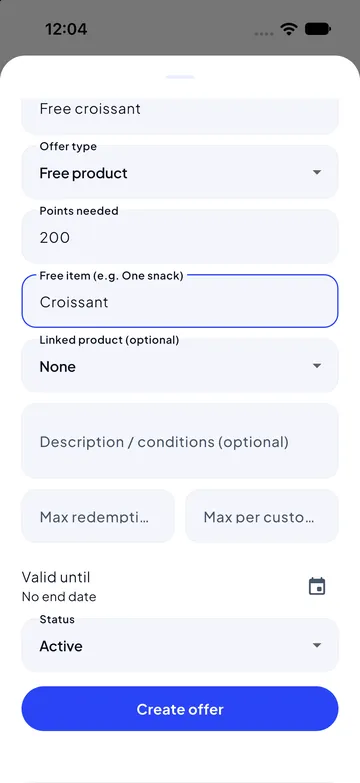
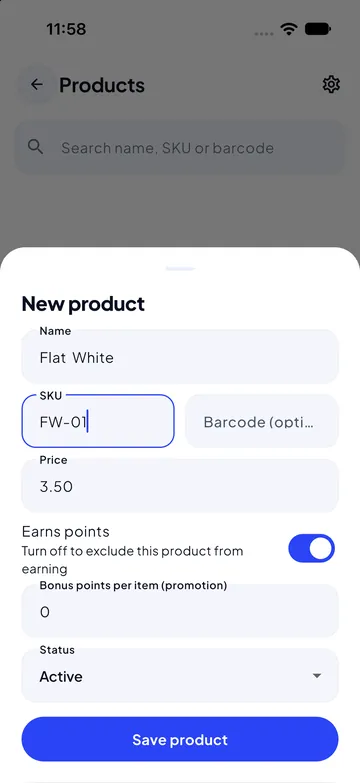
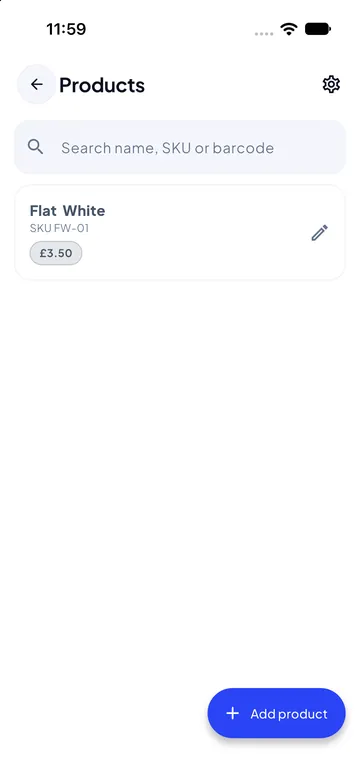
In Offers tap New to create a reward: give it a name and a points price. In Products add items that earn their own points.
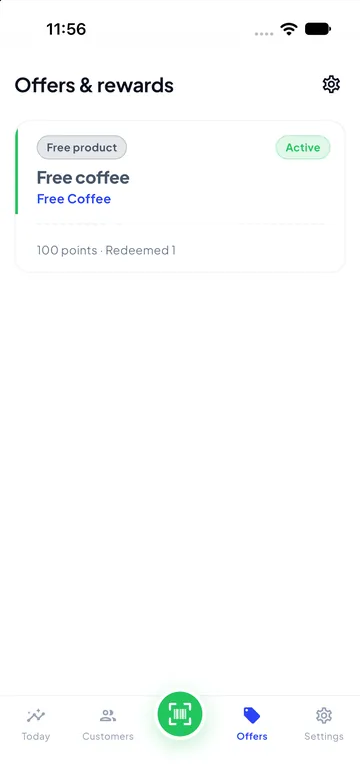
6. Staff
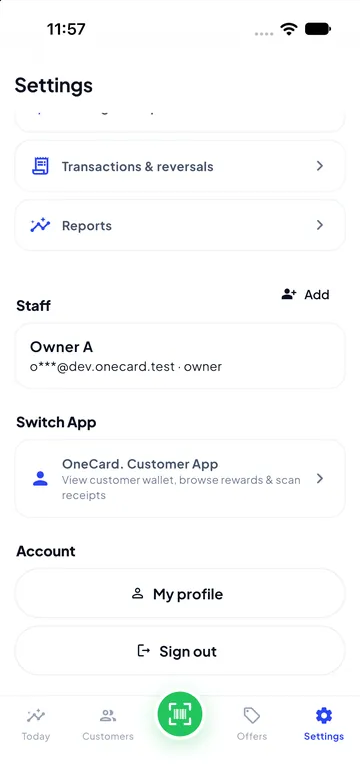
Owners add staff in Settings → Staff with their name, email address and role: Manager or Cashier. Remove someone at any time; the owner can't be removed. Everyone signs in with their own account so the audit trail shows who did what.
7. Reports
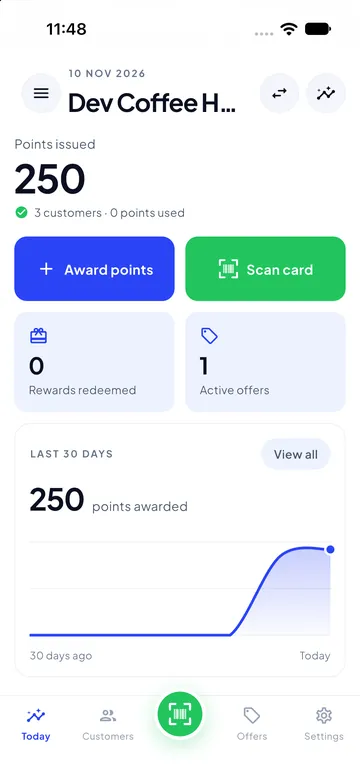
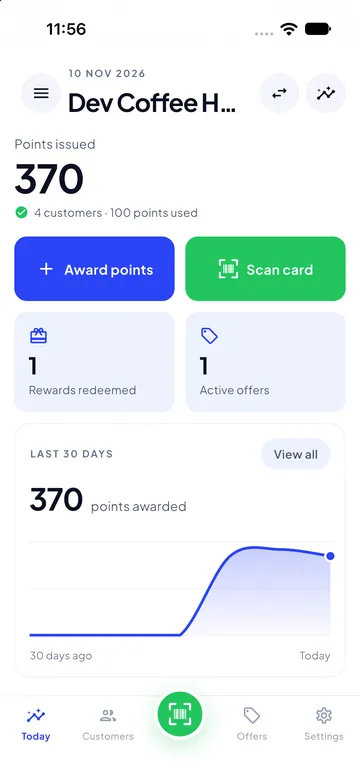
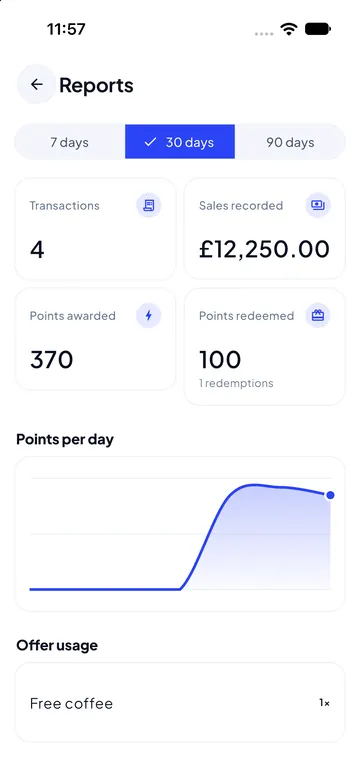
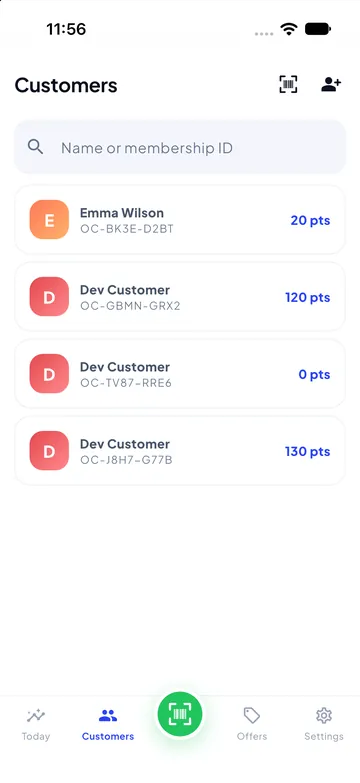
The Today dashboard shows points issued, customers, redemptions and active offers. Reports shows transactions, sales and points over time, and Customers lists everyone with their balance.
8. Connect your till
If your till system supports the OneCard POS API:
- Your till supplier requests access on our API access page, and OneCard approves your shop.
- As the owner, open Settings → Till / POS connection and create a key. The key is shown once: copy it straight into your till's settings or send it securely to your supplier.
- Do a test sale. The customer's points should arrive in their app.
- If a key is lost or a till is replaced, revoke the key and create a new one.
If your till sends sales but has no barcode scanner, waiting sales appear in OneCard Shop. Open the list of waiting till sales, choose the one that matches the customer's receipt and scan their card. Waiting sales expire after 30 minutes.
Developer guide
OneCard has a small REST API for tills and point-of-sale systems. Each shop gets its own API key; your till sends sales in pence and OneCard calculates the points.
POS integration guide
Flow, endpoints, examples in curl and JavaScript, errors and a test checklist.
Read the guide →API reference
The full OpenAPI reference for the OneCard API.
Open the reference →Request API access
Tell us about your till system and the shops you support.
Request access →openapi.json
Download the OpenAPI 3 document to generate a client.
Download →